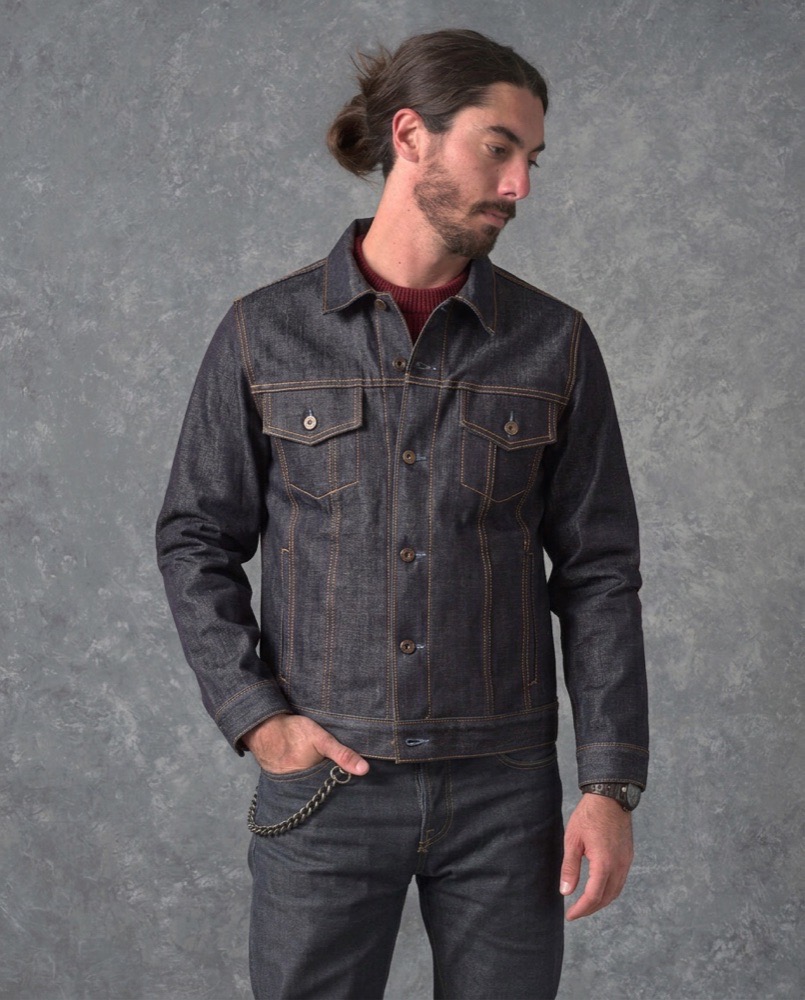
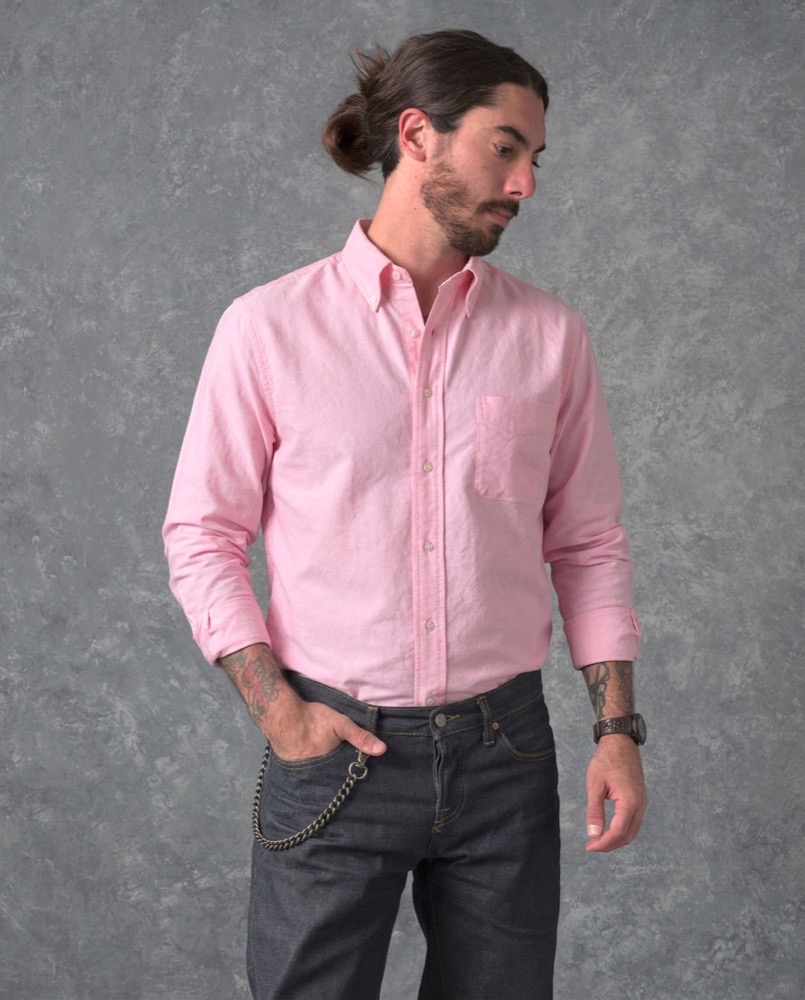
Add virtual try-on to your BigCommerce store
If you sell clothing, wall film or vehicle wraps on BigCommerce, the gap on your product page is the same one every store has: the customer cannot picture the item on themselves, their wall, or their car. They are guessing, and some of them guess by not buying.
- Published
- Reading time
- 4 minutes
Shirts
Oxford shirt
Pink cotton oxford with a button-down collar.
Your preview
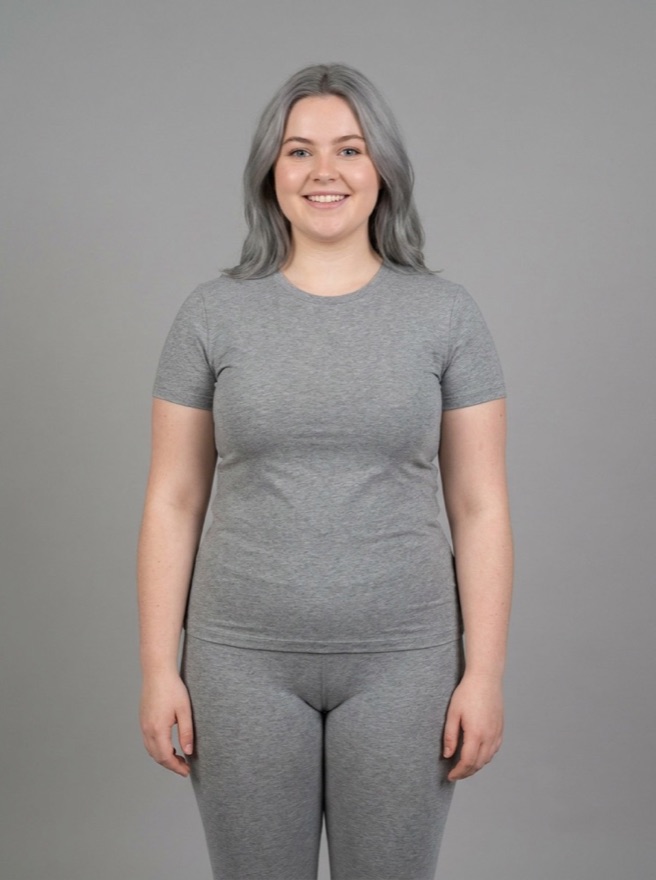
Her photo
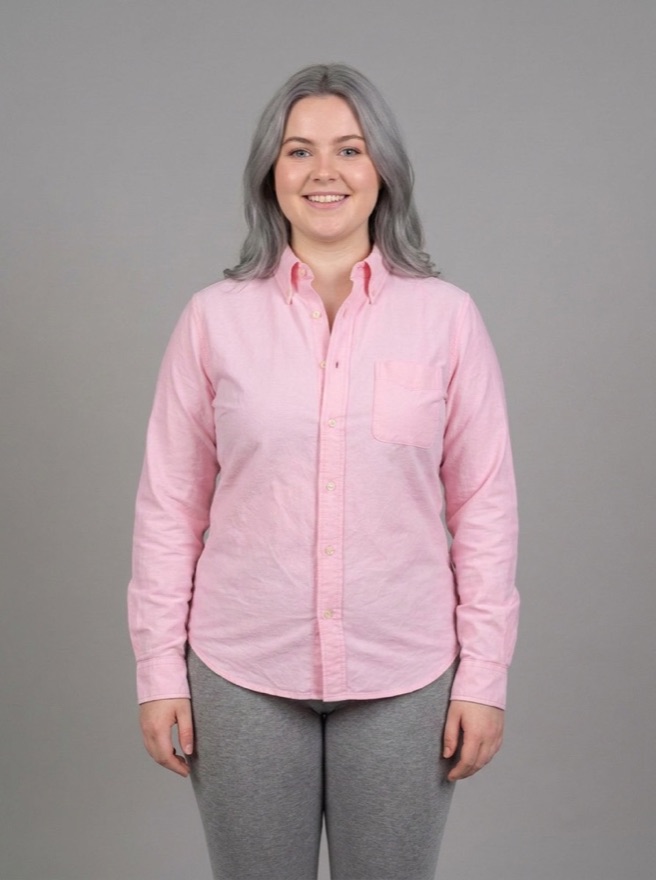
With the shirt
Softbox is a BigCommerce virtual try-on app that closes that gap. The shopper uploads their own photo on the product page and sees the product on it. This post covers what it puts on your storefront, what you control, and what to decide before you turn it on.
What appears on your product page
A Try it on button sits under Add to Cart. The shopper taps it, uploads or takes a photo, and gets the product shown on their photo, usually in under half a minute.
That is the whole shopper-facing surface. There is no separate page to maintain, no configurator for the customer to learn, and nothing for them to drag or mark — the approaches that asked shoppers to outline a wall or correct an AI’s mistake are exactly the ones we tested and rejected.
You control how the button and the preview window look, so it matches your theme rather than announcing itself as a third-party widget.
What it covers
One app, three product types, one engine behind all of them:
| Product type | What the shopper sees | Hardest case it handles |
|---|---|---|
| Clothing | The garment on their own photo | Layering over what they are already wearing |
| Wall film and wallpaper | The film on their own wall | Pale rooms, and objects the same colour as the wall |
| Car wraps | The wrap on their own car | Chrome and colour-shift finishes |
If you sell more than one of these — a film supplier who also sells apparel, say — it is still one install.
Getting it running
Install the app from BigCommerce and approve the permissions. Softbox reads your products so it can use the product images already on your listings; you do not need to prepare 3D models, special photography or anything else.
Set your limits before you enable the widget. This is the step people skip. Every preview costs you something to generate, and the button will be visible to anyone who finds your product page, including people who are not shopping. Decide your spending cap, your per-visitor limit and any country or IP blocks first. There is a full post on stopping AI preview abuse.
Style the widget to your theme.
Turn it on for a few products first. Pick your hardest items, not your easiest — the busiest wallpaper pattern, the chrome wrap, the jacket people wear over other things. If it holds up there it will hold up on the rest.
Test with bad photos. Your own catalogue photography is not the input. Dim hallways, three-quarter angles and cluttered rooms are. Take a few deliberately awkward photos on a phone and run those through.
What you control as the store owner
| Control | What it does |
|---|---|
| Spending limit | Caps what previews can cost you over a period |
| Per-visitor limit | How many previews one shopper gets |
| IP range blocking | Shuts off a source of automated or abusive traffic |
| Country blocking | Restricts previews to where you actually ship |
| Email blocking | Blocks a specific address |
| Trusted customers | Named customers who always get a preview, regardless of other limits |
The trusted-customer list matters more than it first appears. The blunt instruments — caps and blocks — occasionally catch a good customer on a shared network. A list that always gets through means your limits can be tight without costing you a sale.
What to expect, and what not to
Previews usually take under half a minute and run on our servers, so there is nothing large for the shopper to download first. Say so on the button: a shopper who knows it takes a moment will wait, and one expecting an instant result will not.
The preview is an impression of colour, fit and finish — not a measurement. It will not tell a customer whether a size M fits across the shoulders, and it does not replace your size guide, your roll-coverage calculator or your wrap sample swatches.
We are also not going to tell you what it will do to your conversion rate or your returns. We have not run that study on live stores, and the figures circulating in this category usually do not survive a look at the source. What is actually documented is covered in do virtual try-ons reduce returns?
Shopify and other platforms
BigCommerce is live now. Shopify is next. If you are on another platform and want previews, it is worth telling us which — that is how the order gets decided.
Questions people ask
Do we need to prepare special product images?
No. Softbox uses the product photography already on your listings.
Will it slow down our product pages?
The preview runs when a shopper asks for it, server-side. Nothing heavyweight loads up front — avoiding a large browser download was one of the reasons we rejected an earlier approach.
What happens to customer photos?
They are used to produce the preview. Check the app’s data handling and make sure your own privacy policy covers accepting customer images before you enable it.
Can we offer previews only to logged-in customers?
You can restrict who gets them using the per-visitor limits, blocks and trusted-customer list.
Does it work for products that are not clothing, walls or cars?
Those are the three supported types. Other flat-surface and worn products may work; ask before assuming.
How do we know it will look right on our hardest stock?
Read our side-by-side model test first, then turn it on for a handful of your hardest products before the whole catalogue.